


Endoscope Camera / USB OTG
3.533.00 Reviews
App Specs
- Version
- 20.0
- Updated On
- License
- Free
- Downloads
- 100,000+
- Developer
- Shadow soft
- Categories
- Libraries & Demo
- Platform
- Android
Screenshots
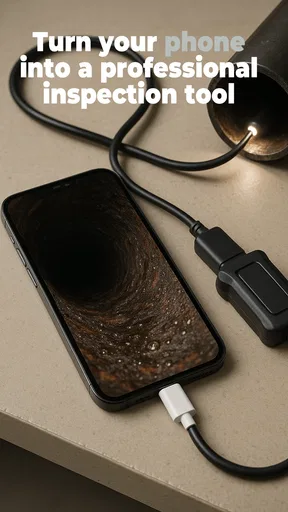
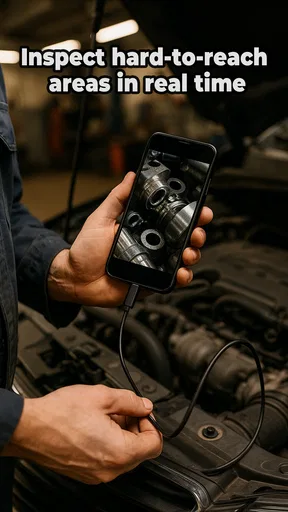
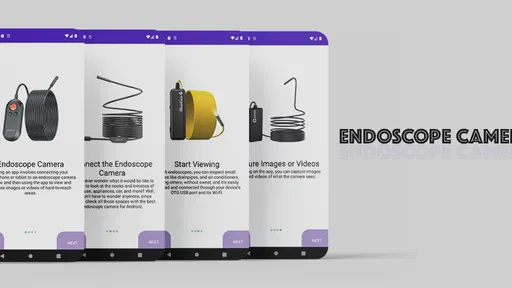
 Analysis by AppCompare
I’d decide whether to try Endoscope Camera by starting with the hardware, not the app. This is a viewing tool for a compatible USB endoscope, borescope, or USB camera; it does not replace the camera itself. If you already have one of those devices, or are choosing one for occasional close-up inspections, the app may be a practical way to see its feed on a phone. If you expect a camera to work wirelessly or want an inspection system with specialized reporting, this is probably not the first option I’d choose.
Check the connection before choosing the app
The key question is whether your phone and camera can make a wired connection. A USB OTG adapter may be part of that setup, so I’d check the camera’s connector and your phone’s port before relying on the app for a task. A loose plug or unsuitable adapter can look like an app problem when the actual issue is the connection. For a job that matters, I’d test the setup at home first rather than discover a compatibility snag beside a blocked pipe or a car part.
I’d also think about the physical inspection, not just the live picture. A flexible camera can reach a narrow gap, but the phone still needs to be close enough to view and control comfortably. If you’re working beneath a sink, for example, arrange the phone where you can see it without pulling the cable sharply or twisting the camera in a way that makes its position hard to judge. The app is most useful when the camera, cable, and screen can all be managed safely.
Where this wired approach is useful
Shadow soft’s app sits in the practical, hands-on corner of the Libraries & Demo category: it connects a phone to an inspection camera rather than trying to be a general photography or home-maintenance suite. I can see the appeal for checking a space before taking something apart. Looking behind an appliance, peering into an accessible cavity, or examining a hard-to-see area around a vehicle can help you decide whether a closer repair is needed.
One useful habit is to begin with a still image or a short recording as soon as you find the area you want to inspect. Moving a flexible camera changes the angle quickly, and it is easy to forget exactly where a detail appeared once you pull the cable back. Keeping a few clearly named files on your phone can make it easier to compare what you saw with a repair guide or show the issue to someone who knows the equipment. That workflow is more dependable than trying to describe a tiny mark from memory.
For a realistic everyday example, imagine a small object slipping behind a cabinet where you cannot get a clear view. Rather than moving heavy furniture immediately, you could use a connected camera to check whether the object is visible and where it sits. That does not guarantee a successful retrieval—the camera only helps you look—but it can prevent unnecessary effort. For plumbing or vehicle checks, I’d treat the view as a way to investigate, not as proof that a system is safe or fully diagnosed.
What it offers, and what it cannot fix
The app’s basic appeal is directness: connect a supported camera, view what it sees, and use the phone to capture material for later. The listed version is 19.0, and the app is free to install, with in-app purchases listed at $14.99 per item. I’d regard that as a low-friction starting point if you already own compatible hardware, while remembering that the camera and any required adapter are separate parts of the setup.
Worth Reading Before You Choose

EA SPORTS FC Mobile 26 Is a Bigger Football Game, but It Takes Time

Flipboard Shows What News Apps Must Do Beyond the Feed

Switching to Android Auto Means Rethinking Your Driving Routine

Google Calendar Makes a Crowded Week Easier to Manage

Ludo King Makes the Most of the Minutes Between Plans

Baby Panda World Brings Quick Play to Modern Phones, but Its Game Library Feels Busy
Its listed average is 3.6 from around 355 ratings, with 50K+ installs. Those figures suggest that people do use it, but they are not a substitute for checking whether your particular phone-and-camera combination works. The app is rated for Everyone and requires Android 7.0 or later. It was released on March 25, 2024, so I’d make sure the current app version is suitable for your device before taking it to an important job.
Compared with a wireless inspection camera’s own app, a USB-based setup may suit someone who prefers a direct cable connection and already has the camera. Compared with a regular phone camera, the endoscope arrangement is useful specifically where the phone itself cannot fit. But a normal camera is easier for broad, well-lit scenes, while a dedicated inspection system may be a better fit when you need a specialized workflow rather than just a live view and saved media. I would not buy this app expecting it to improve a poor camera image, light a dark space by itself, or make a difficult angle easy to interpret.
Small workflow choices that matter
Before inserting the camera into a narrow space, I’d check the live picture in an open area and try a few gentle turns. That gives you a reference for how moving the cable changes the view. If the image looks rotated, the view-rotation control described for the app may help you make sense of the scene, but it cannot tell you which way the camera is physically pointing. I’d use a known landmark—such as an edge or opening—to orient myself before drawing conclusions.
Zoom can help when a feature is small, but I would not assume a zoomed view contains more detail than the camera captured. If an image becomes difficult to interpret, backing off and changing the camera position may be more useful than zooming further. Similarly, choosing a lower or higher resolution is a trade-off: a smaller file may be easier to keep and share, while a clearer capture can be more useful when you need to inspect a detail later. I’d test the available settings before the inspection rather than change them while trying to hold the camera steady.
There is also a practical difference between recording video and taking photos. Video can preserve the path of a slow sweep through a cavity, but it may leave you scrubbing through footage to find one relevant moment. A still is quicker to review, though it captures only one angle. For a repair question, I’d take a still when I find a useful view and record only when movement itself explains what is happening. That keeps the phone’s gallery more manageable and makes it easier to share the important evidence.
Who should look elsewhere
I would skip this approach if you do not have a compatible wired camera and do not want to buy or connect one. I’d also choose another tool for work that depends on certified measurements, formal inspection records, or a reliable diagnosis: a phone display and a small camera image are not a substitute for the relevant professional equipment or expertise. If the task involves a risky electrical, plumbing, or mechanical area, I would not treat a camera view as permission to reach in or dismantle anything.
It may also be the wrong fit for anyone who needs a hands-free workflow. Managing a phone, cable, and flexible camera can be awkward in cramped spaces, especially if you need both hands for the task. A wireless camera or a purpose-built inspection setup might be more comfortable in that situation, though the best choice depends on the camera and the job. For simple visual checks, the wired route is appealing; for repeated professional work, I’d prioritize dependable handling, suitable lighting, and a workflow built for the inspection rather than choosing an app on convenience alone.
Endoscope Camera is made by Shadow soft, and its focused purpose is easy to understand: use a phone as the viewing screen for a connected inspection camera. I would try it when I already had compatible hardware and wanted a straightforward way to examine a hard-to-reach spot. I would first check the connection, test the controls, and decide whether photos or video will be more useful for the task. That modest preparation is what turns a potentially fiddly setup into a helpful one.
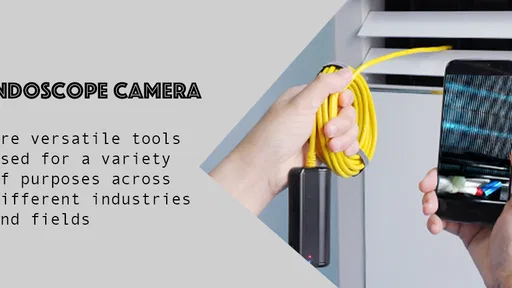
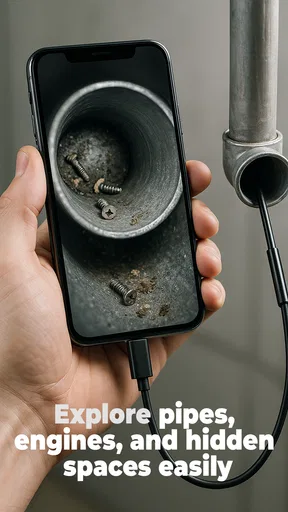
Ever found yourself in a tight spot, quite literally, trying to see into those impossible corners of your home or under the hood of your car? Well, say hello to the nifty Endoscope Camera app. This handy tool is here to save the day by turning your smartphone into a powerful, flexible camera that can reach those awkward nooks and crannies you’ve always struggled with.
Getting Started with the Endoscope Camera
First things first, let’s talk about getting this app up and running. Installation is a breeze. You just need to download it from the app store, plug in your USB OTG endoscope, and you’re good to go. It’s like magic! The app immediately recognizes the device and launches itself, ready for action. No complicated setup or tech wizardry needed.
User Interface & Navigation
The interface is as straightforward as it gets. You’re greeted with a clean, uncluttered screen that puts functionality front and center. It’s intuitive enough that you won’t find yourself fumbling around trying to figure out what button does what. Everything is clearly labeled, and the icons are large enough to tap without accidentally clicking something else. It’s a minimalist’s dream.
Navigation within the app is smooth. You can switch between video and photo modes with a simple tap. The live feed from the camera is clear and responsive, with minimal lag, so you’re not stuck waiting for ages to see what’s happening in real-time.
Functionality & Features
Endoscope Camera shines with its comprehensive set of features. You can take photos, record videos, and even adjust the resolution to suit your needs. Want to zoom in on those hard-to-see spots? No problem! The app supports zoom functionality, making it easier to get a closer look at whatever you’re inspecting.
Another cool feature is the ability to rotate the camera view. This comes in handy when you’re maneuvering the endoscope and need to adjust your perspective. Plus, the app allows you to save your recordings and photos directly to your device, so you can review them later or share them with others. Handy, right?
Performance & Reliability
The app performs like a champ. During my testing, it handled everything I threw at it without a hitch. The video was smooth, and I didn’t experience any crashes or freezes. That’s a major win in my book. It’s dependable, which is exactly what you need when you’re relying on it for those tricky inspections.
Battery consumption is reasonable too. It won’t drain your device’s battery in no time, which is a relief, especially if you’re planning to use it for extended periods. The app developers have done a great job optimizing it for efficiency.
Practical Applications
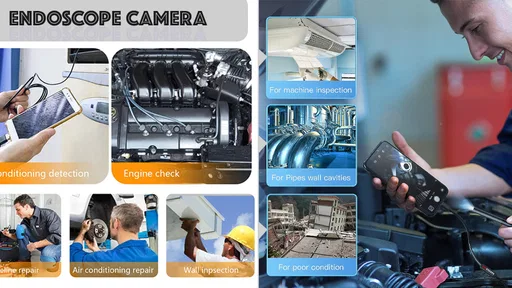
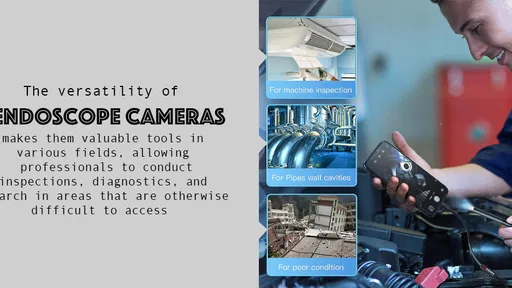
This app isn’t just for the tech enthusiasts out there. It’s genuinely useful for a wide range of tasks. Whether you’re a DIY enthusiast, a mechanic, or just someone trying to locate that pesky clog in your drain, Endoscope Camera has got your back. The versatility it offers is impressive.
Imagine being able to inspect your car’s engine without having to be a contortionist or checking out what’s causing that blockage in your gutter without climbing a ladder. It’s like having a mini superpower in your pocket.
Wrap Up
In a nutshell, the Endoscope Camera app is a fantastic tool that packs a punch. It’s user-friendly, packed with features, and reliable. Whether you’re using it for professional purposes or just to satisfy your curiosity, it’s an app that delivers on its promises.
Overall, I’d say it’s a must-have for anyone who finds themselves needing to see the unseen. Give it a try, and you’ll wonder how you ever managed without it. It’s like having a third eye that fits right into your pocket.
Pros
- Easy to connect with USB OTG support.
- High-quality image resolution.
- Compatible with various devices.
- User-friendly interface.
- Real-time video streaming.
Cons
- Limited support for older devices.
- Requires external power source.
- Occasional app crashes.
- Limited advanced features.
- May struggle in low-light conditions.
FAQs for Endoscope Camera / USB OTG
How do I connect my endoscope camera to my Android device using USB OTG?
To connect your endoscope camera, ensure your Android device supports USB OTG. Use the OTG adapter to connect the camera to your phone. Once connected, open the Endoscope Camera app, and it should automatically detect the camera. If not, check your device’s USB settings and ensure the app has the necessary permissions.
Is the Endoscope Camera app compatible with all Android devices?
The app is compatible with most Android devices that support USB OTG functionality. However, some devices may have hardware or software limitations. It's essential to check your device’s specifications and ensure it supports OTG connections. Compatibility can also depend on the Android version, so ensure your OS is up to date.
What features does the Endoscope Camera app offer?
The Endoscope Camera app provides features such as real-time video streaming, photo and video recording, and adjustable resolutions. It also offers options for brightness and contrast adjustments to enhance image quality. Some versions include a gallery feature for easy access to saved media and support for LED light control on the endoscope.
Are there any privacy concerns with using the Endoscope Camera app?
The app requires permissions to access your device's USB ports and storage to function correctly. Users should be aware of these permissions and only download the app from reputable sources. Always review the app’s privacy policy to understand how your data is used and ensure your device is protected against unauthorized access.
What should I do if the app doesn't detect my endoscope camera?
If the app fails to detect your camera, first check the OTG adapter connection. Make sure your device supports USB OTG and that the app has all necessary permissions enabled. Restart your phone and try reconnecting the camera. If issues persist, consult the app’s support or your device's manufacturer for further assistance.


